Swap drones
The Swap drones dialog lets you replace drones in the show mapping during show preparation without editing the mapping manually. Typical use cases are replacing a drone with a low battery or a hardware fault with a spare drone on standby, or exchanging the takeoff positions of two drones.
Open the dialog by selecting Swap drones from the mapping tools dropdown menu on the toolbar of the UAVs panel.
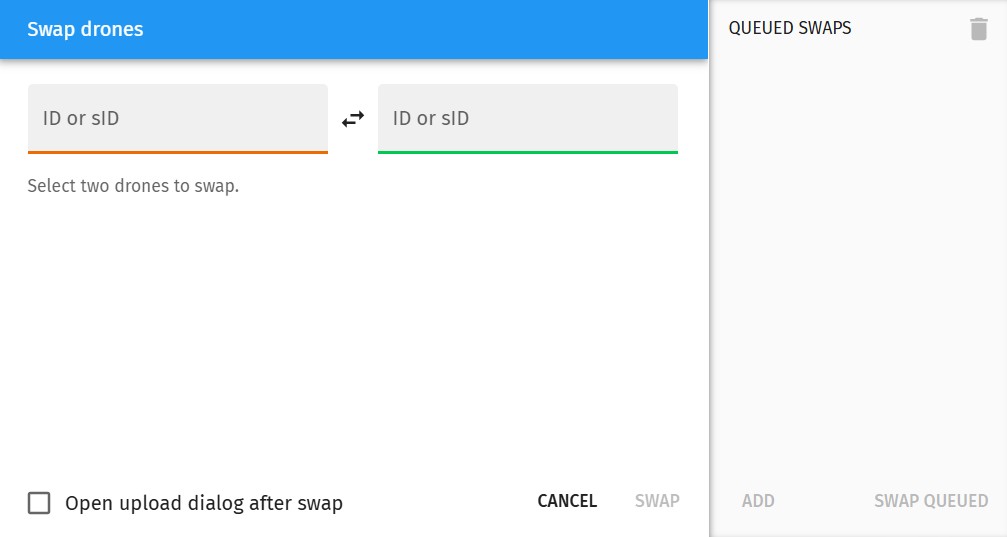
The dialog only modifies the mapping between show IDs and physical IDs. It does not send anything to the drones. The new show trajectories still have to be uploaded to the affected drones after the swap.
Selecting the drones to swap
The dialog contains two input fields. Type a physical drone ID or a show ID (prefixed with an s, e.g. s12) into each field. A dropdown list helps you complete the IDs as you type. If you type a show ID, the dialog lists the slots of the mapping, including the empty ones.
Press Enter in the left field to jump to the right field, and press Enter again in the right field to jump to the Swap button. Press Esc in any field to close the dialog.
A physical ID always refers to the given drone, wherever it is in the mapping. A show ID refers to the drone that occupies the given slot of the mapping at the time of the swap, or to the empty slot if no drone is assigned to it.
The drones do not have to be online. This allows you to prepare the swaps before the ground crew turns on the drones.
The result of the swap depends on the two items you entered:
-
Two mapped drones: the drones exchange their show IDs.
-
A mapped drone and an unmapped (spare) drone: the spare drone takes the show ID of the mapped drone, and the mapped drone is removed from the mapping.
-
A mapped drone and an empty show ID: the drone moves to the empty show ID, and its old show ID becomes empty.
-
An unmapped drone and an empty show ID: the drone gets the empty show ID.
Swapping a drone with itself, a show ID with itself, two unmapped drones or two empty show IDs is not allowed.
The What will happen section of the dialog previews the outcome of the swap before you confirm it. It lists the drones that are moved, added or removed, the show IDs that become empty, the drones that are not online yet and the drones that will need a new show upload.
Press the Swap button to perform the swap immediately.
Queued swaps
If you need to perform several swaps, you can collect them in the Queued swaps list on the right side of the dialog. Fill in the two input fields and press Add to add the pair to the queue. Press Swap queued to perform all queued swaps in a single step.
Queued swaps are evaluated in order, each one on the mapping produced by the previous swaps. For instance, if you queue s3 ↔ 17 first and s3 ↔ 20 next, the second swap exchanges drone 20 with drone 17, which occupies s3 after the first swap.
The swaps in the queue are performed together: if any of them fails, the mapping is left unchanged. If the mapping changes while the queue is being prepared (e.g., because you edited it manually), some queued swaps might become invalid. In this case the invalid swap is highlighted in the queue, and you need to remove it before you can continue. Use the Remove all queued swaps button at the top of the queue to clear the queue completely.
Uploading the show after the swap
Drones that receive a new show ID need a new show upload. If the Open upload dialog after swap checkbox is selected, the Mission upload dialog opens after the swap with these drones already added to the upload queue. Drones that were removed from the mapping are not uploaded.
If the checkbox is not selected, a notification lists the drones that need a new upload.