Mission upload
The mission upload dialog enables you to upload your show or mission content to your drones.
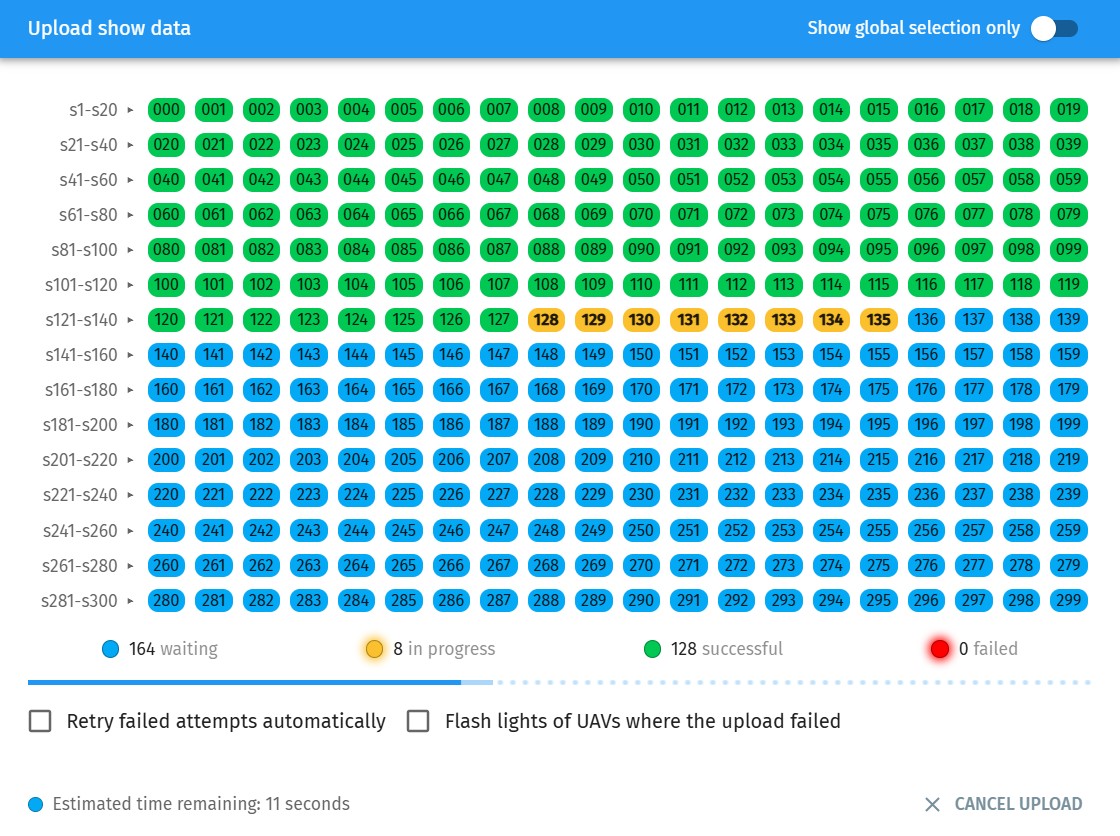
On the show/mission upload dialog window, drones are organized into rows of 20 according to their show/mission ID (e.g. s1-20, as shown on the left of the dialog window), while individual icons of drones show their drone ID.
Simply press the START button at the bottom of the window to upload the show/mission to all drones.
The upload process can take some time depending on the number of drones you use and the strength and quality of the Wi-Fi connection to the drones. The overall progress is indicated by the progress bar in the middle of the window, an estimated remaining time is calculated in the bottom left corner of the dialog, while individual status of each drone is indicated by the color of its icon:
-
gray - unprocessed
-
blue - in waiting list
-
yellow - in progress
-
green - successful
-
red - failed
The upload finishes successfully if all icons turn green.
| You can close and reopen the upload dialog during upload any time as the upload process is persistent in the background and the last upload statuses of all drones are also preserved persistently. |
Uploading to only a subset of drones
You can stop and restart the upload process any time, and you can always select only a subset of the drones queued for upload.
First of all, you can restrict the display to only globally selected drones with the Show global selection only toggle in the top right corner, which lets you start the upload process to only these drones if there are no other drones manually selected for upload in the show upload dialog.
If you wish to upload to only specific drones manually, you can select them by clicking on their individual ID icon once (and deselect by clicking again). You can also select a full row by clicking on the group descriptor on the left.
If you move your cursor over the summary status pills (waiting/successful/failed), you can enqueue all drones with the corresponding status for the next show upload process.
No matter how you choose your drones to be enqueued, selected drones will be moved to the waiting state (their icon will turn blue).
If there are drones in the waiting state, the START button will turn into START SELECTED, and will upload show data only to the selected drones.
Whenever a new upload process starts, the color of the icons for drones in previous show upload attempts will be slightly dimmed to highlight those that take part in the current process.
Retry failed uploads automatically
You can retry failed drones automatically by enabling the Retry failed uploads automatically checkbox at the bottom left of the dialog window.
| If you move your cursor over the upload status pill of a UAV with upload failure, you will get details about that specific failure in the appearing tooltip. |
Flash lights of UAVs where the upload failed
If you enable the Flash lights of UAVs where the upload failed checkbox, drones on which upload starts again after a failure will be visible on the field with automatic white flashes.
Clear history
To clear the show upload history of all drones and restart the entire process again, simply press the Clear history button on the bottom of the dialog. Note that the upload history is also cleared automatically on certain external events, such as changing the show file, some show parameters, geofence parameters etc. This ensures triggering a notification for you that the entire upload process needs to be repeated.