Upload your mission to the drones
Next, press the Upload show data checklist item to upload your show content to your drones.
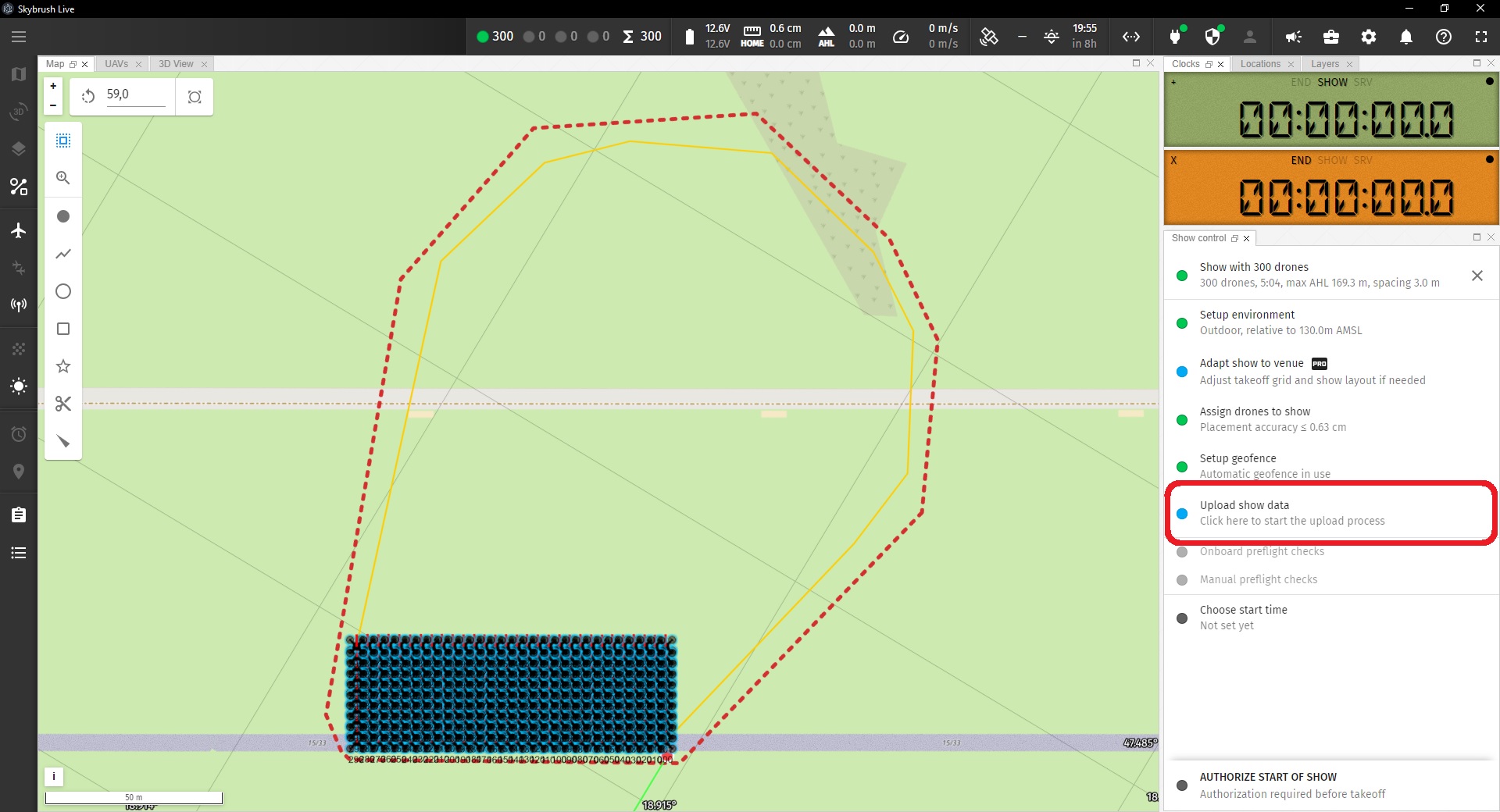
This will open the Show upload dialog, which enables you to upload the show to all your drones automatically.
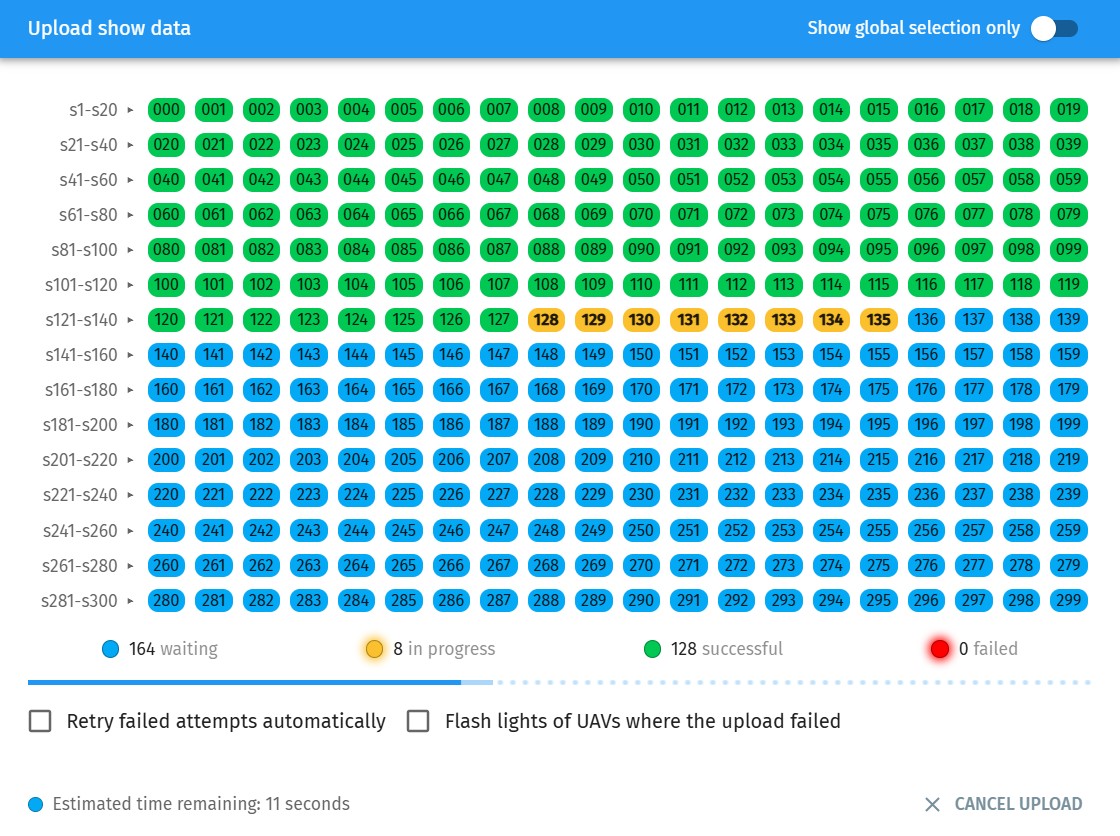
In this dialog all you need to do is to press the Start button to initiate the batch upload process, and you will see the upload progress right away. If you are interested in more details, take a look at the description of the dialog at the link given above.
The upload finishes successfully if all icons turn green. In this case you can proceed to the next step by closing the upload dialog window.
| You can close and reopen the upload window during upload any time, in this case the progress bar will appear on the Upload show data button of the show control panel to show the overall progress of the upload process. |