Plan collective RTH
| This dialog is experimental! Layout and functionality might change without notice. |
The Plan collective RTH dialog enables Pro users to generate predefined collective RTH plans for their drone show, to be able to cancel a show at any point mid-show with a smooth coordinated swarm-level failsafe procedure.
Prerequisites
-
The collective RTH functionality is only available to Pro users
-
You must use a
.skycdrone show file that contains proper segment annotationsUse the Purpose dropdown in Skybrush Studio for Blender to annotate a show properly in the design phase. -
Make sure the start (takeoff) and end (land) segments of the show are perfectly vertical.
-
Make sure the validation parameters of your
.skycfile are set up properly as some of them (e.g., the maximum acceleration, minimum navigation altitude) will be used during the generation of the collective RTH plans.
Parameters
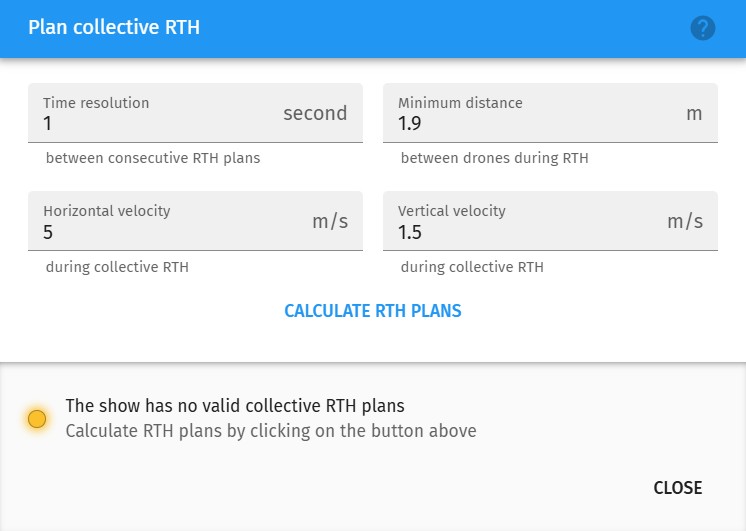
The following input parameters shape the swarm-level collective RTH plan to be generated:
- Time resolution
-
Set the time interval between consecutive timestamps of pre-generated RTH plans. If you decrease this number, you will be able to bring all your drones home with less preparation time after triggering a collective RTH. However, generating collective RTH plans is a CPU-intensive calculation, so generating too frequent plans — especially with very large drone swarms — might take a long time. Choose a compromise according to your needs.
- Minimum distance
-
Set the minimum required safety distance between your drones during the collective RTH procedure. Caution: the minimum distance value cannot be larger than the minimum distance present in your show.
- Horizontal velocity
-
Set the maximum horizontal speed allowed during the collective RTH maneuver.
- Vertical velocity
-
Set the maximum vertical speed allowed during the collective RTH maneuver, including the landing phase. Too small values will unnecessarily prolong your show, while too large values might startle you as the drones get closer to the ground at the end of the landing phase. However, note that drones switch to LAND flight mode automatically at the minimum navigation altitude, so if your drones are well-tuned and the minimum navigation altitude is not too low, there is no need to worry about higher vertical speeds.
Additional parameters, such as maximum acceleration or minimum navigation altitude, are taken from the validation settings of the loaded .skyc file.
Calculate RTH plans
After setting up the input parameters, press the Calculate RTH plans button at the bottom of the dialog to generate the collective RTH plan. After the calculation has started, a progress bar will appear with detailed information about the process.
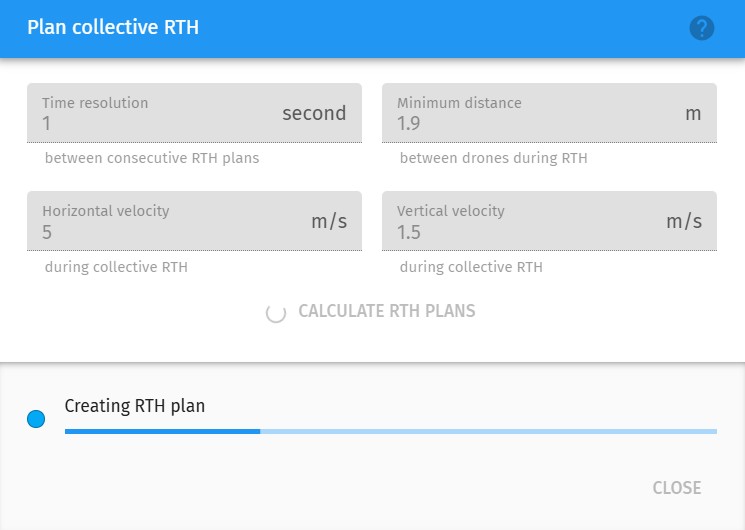
| Calculation might take a while, depending on the swarm size and the time interval parameter selected. Leave enough time for this phase during the preparation before your drone show! |
Once the collective RTH plans are generated, they can be saved to a new .skyc drone show file with the Save button, or used directly by pressing the Approve button.
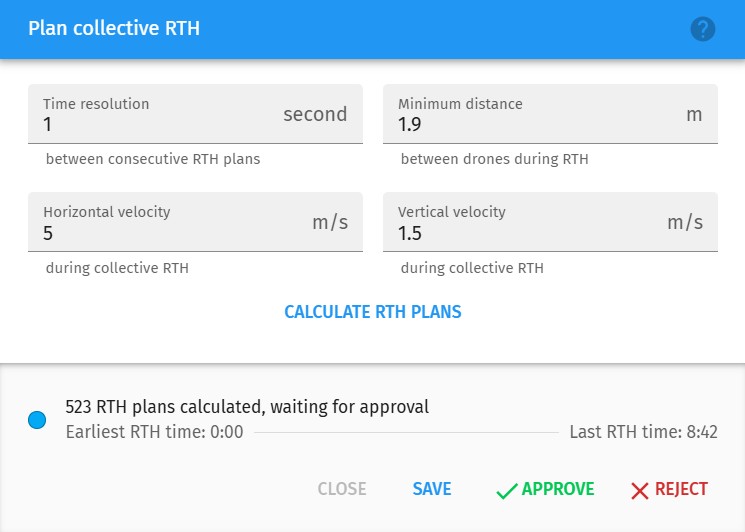
| After saving and/or approval, use the Timeline panel to review and validate the contents of the generated collective RTH plan. |