Parameter check
The parameter check tool enables you to compare autopilot parameter values across multiple drones.
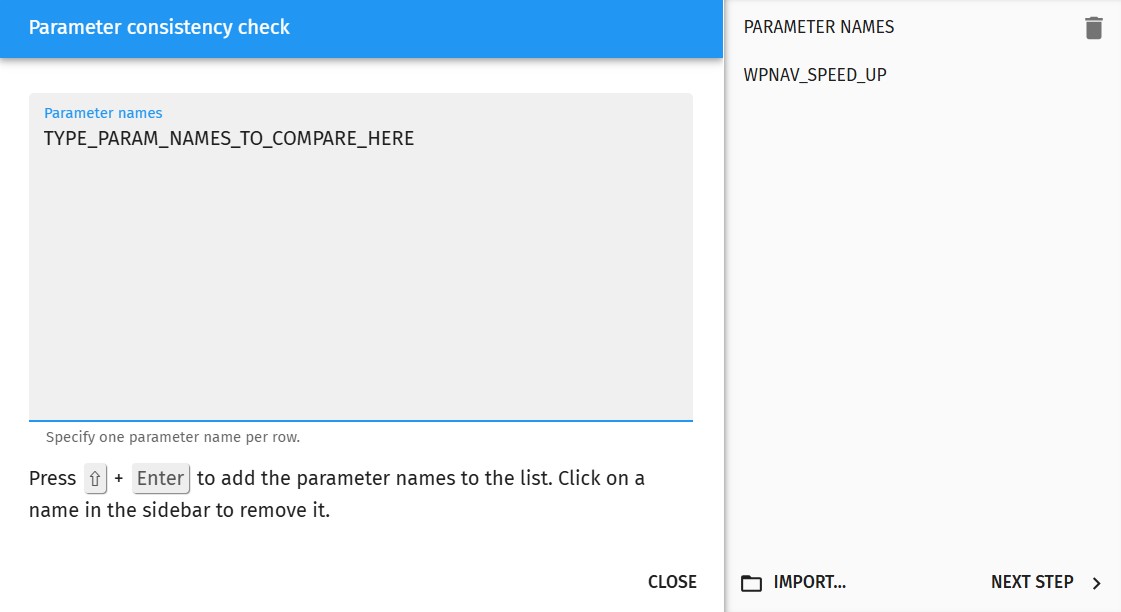
First, you need to define the parameters you want to check in the text box at the top-left corner of the dialog window, following the instructions shown below the text box.
When all parameters are defined, press Shift+Enter to push the defined parameters to the manifest (right side of the window).
Alternatively, you can add parameters to the manifest from a parameter file using the Import button at the bottom-right corner. Parameter files should contain one parameter per line. Associated values in a standard parameter file are ignored.
| Do not forget to clear the manifest before pressing Import if you wish to check only those parameters that are in your parameter file. |
Once you are satisfied with the manifest, press the Next step button to go to the parameter status dialog, which will try to collect the values of all parameters in the manifest from all UAVs.
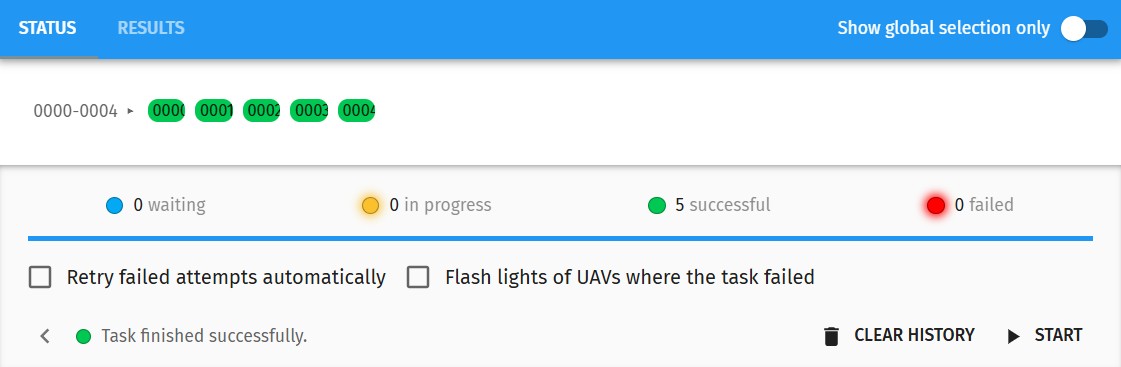
The batch parameter status dialog is similar to the mission upload dialog, except that there is a < button at the bottom-left corner that takes you back to the previous parameter selector dialog.
For more information about how to use this window, please read the Upload your mission to the drones section of the Start a drone show in 10 steps with Skybrush Live tutorial.
Once the parameter values have been retrieved from all UAVs, select the Results tab in the header to compare the selected parameters.
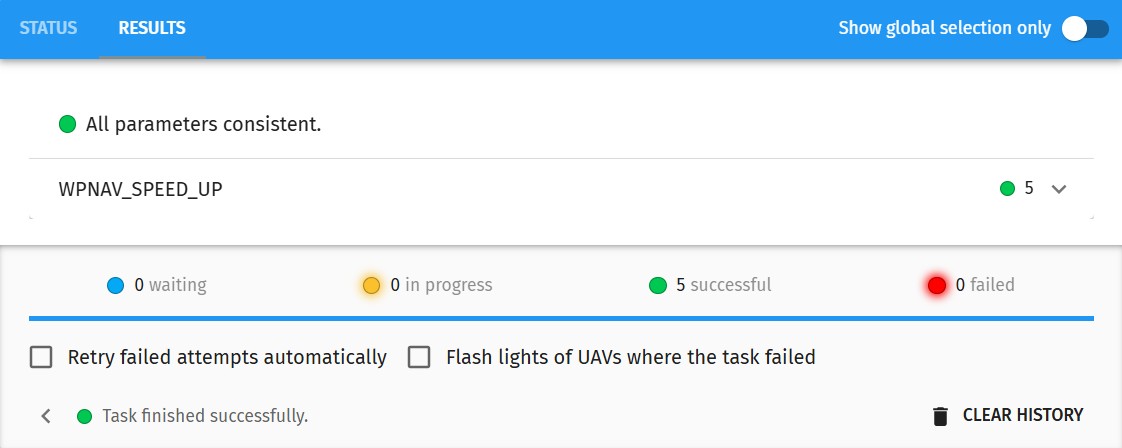
This dialog shows you an overall evaluation of the parameter consistency check, and also gives you detailed results for each parameter chosen.
Click on each parameter name to open more detailed results about its value distribution across UAVs.